- Empty cart.
- Continue Shopping

How to Build a Clean Dual-Monitor Setup on a $500 Budget
- Posted on
polar_meter_73@icloud.com
- 0
- Categories: Guide
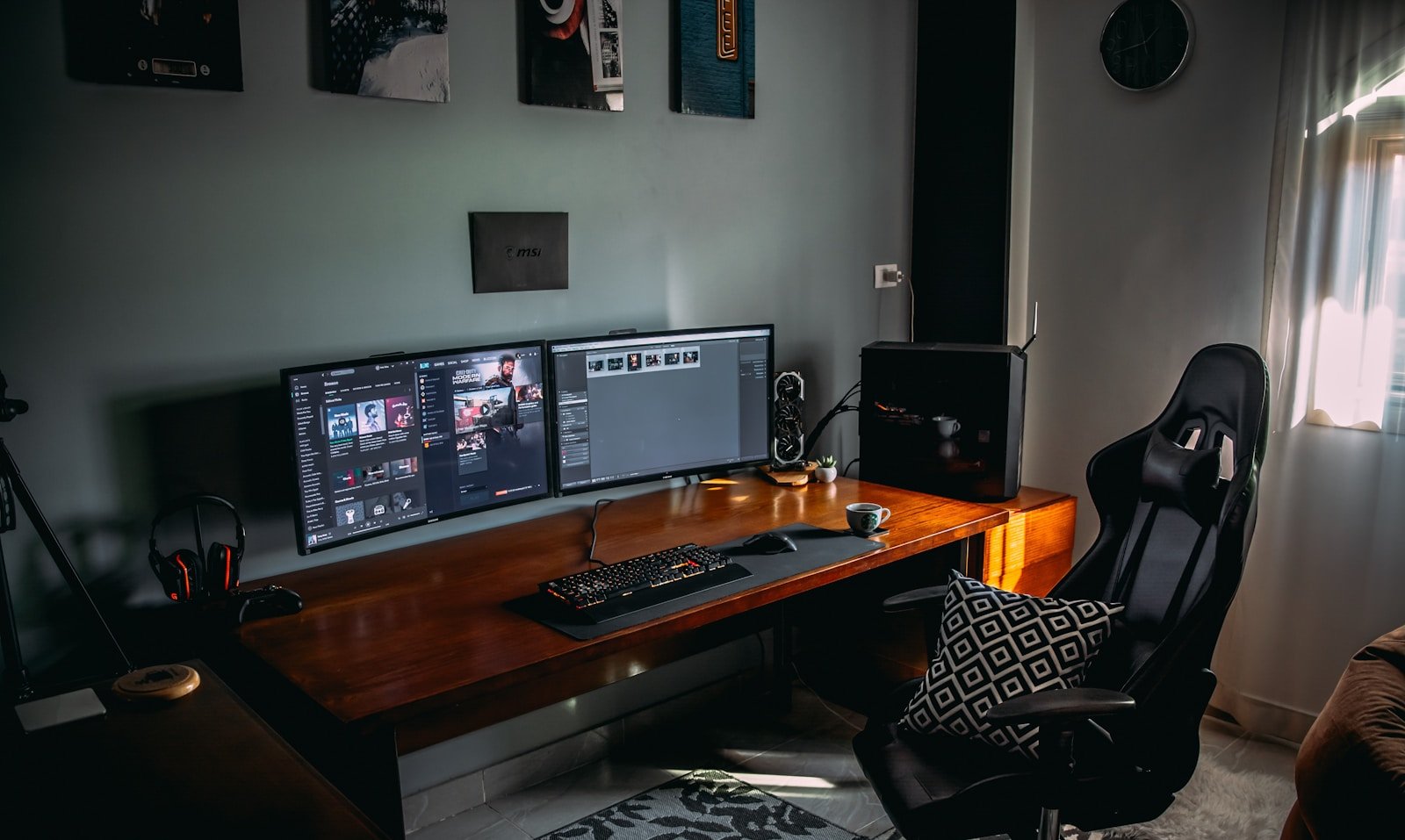
Creating a clean, efficient dual-monitor setup doesn’t require a massive investment or tons of space. In fact, with some smart planning, you can build a functional and aesthetically pleasing dual-monitor workstation for under $500—cables managed, workspace organized, and productivity boosted.
Whether you’re working remotely, studying, gaming, or creating content, this guide walks you through every component you’ll need to build a clean dual-monitor setup on a budget—without sacrificing quality.
Why Choose a Dual-Monitor Setup?
Before we get into the budget and gear, let’s highlight why dual monitors are worth the effort and investment:
- Improved productivity: Research shows that dual-monitor setups can increase productivity by up to 40%.
- Better multitasking: Work on one screen, reference another—no more window juggling.
- Smooth workflow: Ideal for creatives, developers, students, and remote professionals.
- Enhanced ergonomics: A dual-display setup lets you design your layout for less neck and eye strain.
- Clean visual appeal: With the right accessories and cable management, your desk can look as good as it performs.
Now let’s dive into exactly how to build one for under $500.
The $500 Budget Breakdown (What You’ll Need)
Here’s a breakdown of what you need to build a complete dual-monitor setup:
| Component | Target Budget Range |
|---|---|
| Two Monitors | $200 – $250 |
| Monitor Mount / Stand | $30 – $50 |
| Desk Accessories (Cable Management, Mat, Stand) | $30 – $50 |
| Compact Desk or Surface | $80 – $100 |
| Keyboard & Mouse | $40 – $60 |
| Optional Extras (Lamp, USB Hub, Speakers) | $30 – $50 |
Let’s go step-by-step to assemble the cleanest, most cost-effective setup possible.
1. Choosing the Right Monitors (Budget: $200–$250)
Your monitors are the centerpiece of your entire setup. Thankfully, there are plenty of high-quality 22 to 27-inch displays in the $100–$130 range.
What to look for:
- Size: 24-inch is the sweet spot for most desks and eye comfort.
- Resolution: Aim for Full HD (1920×1080). If you can find a 1440p model under $150, even better.
- IPS Panel: Better color accuracy and viewing angles than TN panels.
- VESA Compatibility: Ensures you can mount them on a monitor arm for a clean setup.
Recommended approach:
Look for two matching 24-inch monitors with slim bezels and VESA mounts. This gives you a symmetrical look and is ideal for multitasking.
2. Mounting Your Monitors (Budget: $30–$50)
Mounting your monitors with a dual-arm stand clears up desk space and enhances the aesthetic of your setup. A good mount also helps you adjust the screens to ergonomic eye level.
What to look for:
- Gas spring or mechanical arms for flexibility and height adjustment.
- Clamp or grommet mounting options depending on your desk.
- Integrated cable management features for a clean look.
Why it matters:
A monitor stand eliminates the bulky factory stands and frees up valuable desk real estate, making your workspace cleaner and more comfortable.
3. Picking a Clean Desk (Budget: $80–$100)
You don’t need a massive L-shaped desk. A simple, sturdy desk between 40–55 inches wide can comfortably support a dual-monitor setup and still leave space for essentials.
What to look for:
- Solid build quality: Avoid wobble at all costs.
- Minimalist design: Fewer distractions and easier to maintain.
- Cable pass-throughs or grommets: These help you route wires discreetly.
Optional tip: If you already have a desk or table, allocate this budget to accessories or better monitors.
4. Keyboard & Mouse Combo (Budget: $40–$60)
Go wireless for maximum flexibility and fewer cables. Look for combos with quiet keys, long battery life, and reliable wireless range.
What to look for:
- Wireless connection (USB or Bluetooth)
- Low-profile or mechanical feel (depending on preference)
- Compact layout if space is tight
- Quiet click mouse for shared environments
Bonus tip: Ergonomic designs help you work longer without fatigue—especially important if you’re using this setup for hours a day.
5. Cable Management Accessories (Budget: $20–$30)
Even with great gear, loose cables can ruin your setup’s appearance and functionality. Spend a bit on cable management to keep things neat and hidden.
Must-haves:
- Cable clips or adhesive mounts to run wires along the desk underside
- Velcro straps or cable sleeves to bundle power cords
- Cable box to hide power strips or bulky adapters
Result: A cleaner, more professional-looking space that’s easier to clean and less visually distracting.
6. Desk Mat & Mouse Pad (Budget: $10–$20)
A large desk mat doubles as a mousepad and protects your surface from scratches and spills. It also creates a clean visual border that ties your workspace together.
Why it helps:
- Dampens noise from typing and mouse movement
- Helps visually define your work zone
- Prevents clutter and cable drag
Choose a minimalist design in a color that matches your aesthetic (e.g., black, gray, or tan).
7. Optional Extras (Budget: $30–$50)
If you have money left over or want to enhance your setup, here are a few worthy add-ons:
LED Desk Lamp
Look for dimmable models with USB ports for added convenience. A good lamp boosts focus and helps reduce eye strain during late-night work.
USB-C or USB 3.0 Hub
Great for connecting peripherals without reaching behind your monitors. Place it under your monitor or mount it to the side of your desk for easy access.
Compact Desk Speakers or Headphones
If you want audio that’s better than your monitor’s built-in speakers, look for budget-friendly desktop speakers or plug-in headphones that save space.
Tips to Keep Your Dual-Monitor Setup Clean & Minimal
Now that your gear is ready, here are a few pro tips to keep your workspace looking and functioning at its best:
1. Use Matching Monitors
Even if you can only afford one at a time, try to match the make and model when you add a second. Symmetry = clean aesthetic.
2. Tidy Cables Immediately
Don’t wait. Set up cable management the same day you build the desk. It’s easier to stay organized than to fix clutter later.
3. Keep the Desktop Minimal
Only keep daily-use items on the surface. Everything else should be stored away or mounted.
4. Digitally Declutter Too
Keep your desktop (on-screen) as clean as your physical one. Use one monitor for active work and the other for reference, calls, or media.
5. Weekly Reset
Take 10 minutes each week to clean dust, remove unused items, and wipe down your desk mat and keyboard.
A Sample Dual-Monitor Setup for Under $500
Here’s a real-world example of how your budget might break down:
| Item | Estimated Cost |
|---|---|
| Two 24” Full HD Monitors | $230 |
| Dual Monitor Arm with Cable Management | $40 |
| Compact Desk (48″) | $90 |
| Wireless Keyboard & Mouse Combo | $50 |
| Cable Management Kit | $20 |
| Desk Mat | $15 |
| Optional USB Hub or Desk Lamp | $30 |
| Total | $475 |
That leaves a little room for taxes or shipping—proof that you can build a professional-looking and highly functional dual-monitor setup without crossing the $500 mark.
Final Thoughts
A dual-monitor setup doesn’t have to be expensive or take over your entire room. With smart product choices, simple accessories, and intentional cable management, you can build a clean, comfortable, and efficient workspace on a budget.
This kind of setup works whether you’re working from home, studying in a small room, or upgrading your gaming station—and it sends a clear message: you take your space, time, and productivity seriously.
At TheWFHClub.com, we believe the best setups aren’t always the most expensive—they’re the ones that are thoughtfully built, tailored to your needs, and designed for simplicity.
So roll up your sleeves, measure your space, and start building the desk you deserve—all under $500.


